Teams -QuickStart Guide

Created by Daniel Pesek, Modified on Tue, 27 Feb, 2024 at 1:10 PM by Daniel Pesek

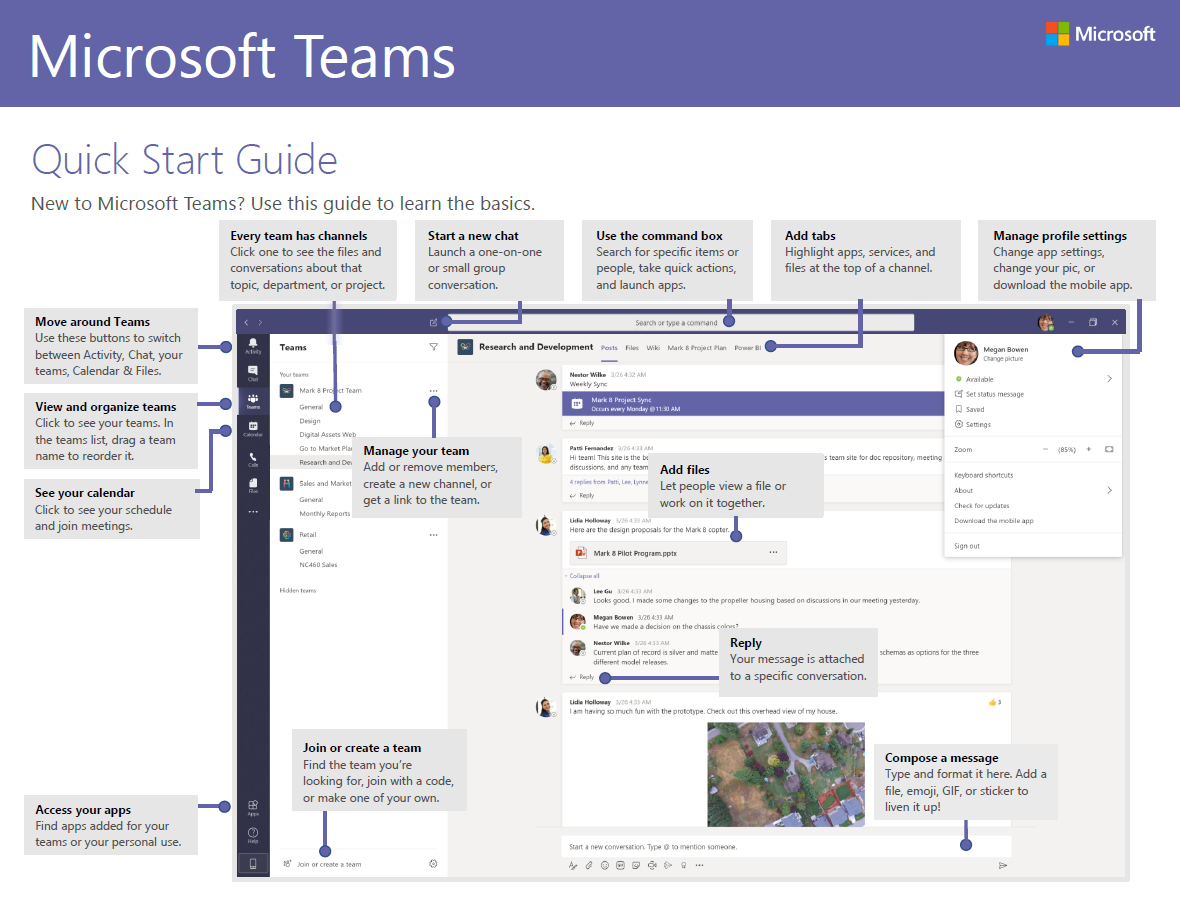
Microsoft Teams Quick Start Guide New to Microsoft Teams? Use this guide to learn the basics. Every team has channels Click one to see the files and conversations about that topic, department, or project. Start a new chat Launch a one-on-one or small group conversati on. and Use the command box Search for specific items or people, take quick actions, and launch apps. Add files Add tabs Highlight apps, services, and files at the top of a channel. Microsoft Manage profile settings Change app settings, change your pic, or download the mobile app. Move around Teams Use these buttons to switch between Activity, Chat, your teams, Calendar & Files. View and organize teams Click to see your teams. In the teams list drag a team name to reorder it. See your calendar Click to see your schedule and join meetings. Access your apps Find apps added for your teams or your personal use. Manage your team Add or remcve members, create a new channel, or get a link to the team. Join or create a team Find the team you're looking for, join with a code, or make one of ytwr own. Let people view a file or work on it together. Rep Iy Your message is attached to a specific conversation. 'his Compose a message Type and format it here. Add a file, emoji, GIF, or sticker to liven it up!


Microsoft Teams Sign in In Windows, click Start c > Microsoft Teams. On Mac, go to the Applications folder and click Microsoft Teams. On mobile, tap the Teams icon. Then sign in with your Microsoft 365 username and password. (If you're using Teams free, sign in with that username and password.) M i crosoft Sign in Start a conversation With the whole team... Select Teams 263 , pick a team and channel, write your message, and click Send With a person or group... Click New chat , type the name of the person or group in the To field, write your message, and click Send •e got Pick a team and channel A team is a collection of people, conversations, files, and tools—all in one place. A channel is a discussion in a team, dedicated to a department, project, or topic. 2-6; and choose a team. Pick a channel to explore Posts, Files, and Select Teams other tabs. Start an impromptu meeting Click Meet nowQ< under the area where you typg a message to start a meeting in a channel. (If you click Reply, then Meet now (24, the meeting is based on that conversation.) Enter a name for the meeting, then start inviting people. Meeting ended'. 19m 20s V Reply Start a new conversation. Type @ to mention som


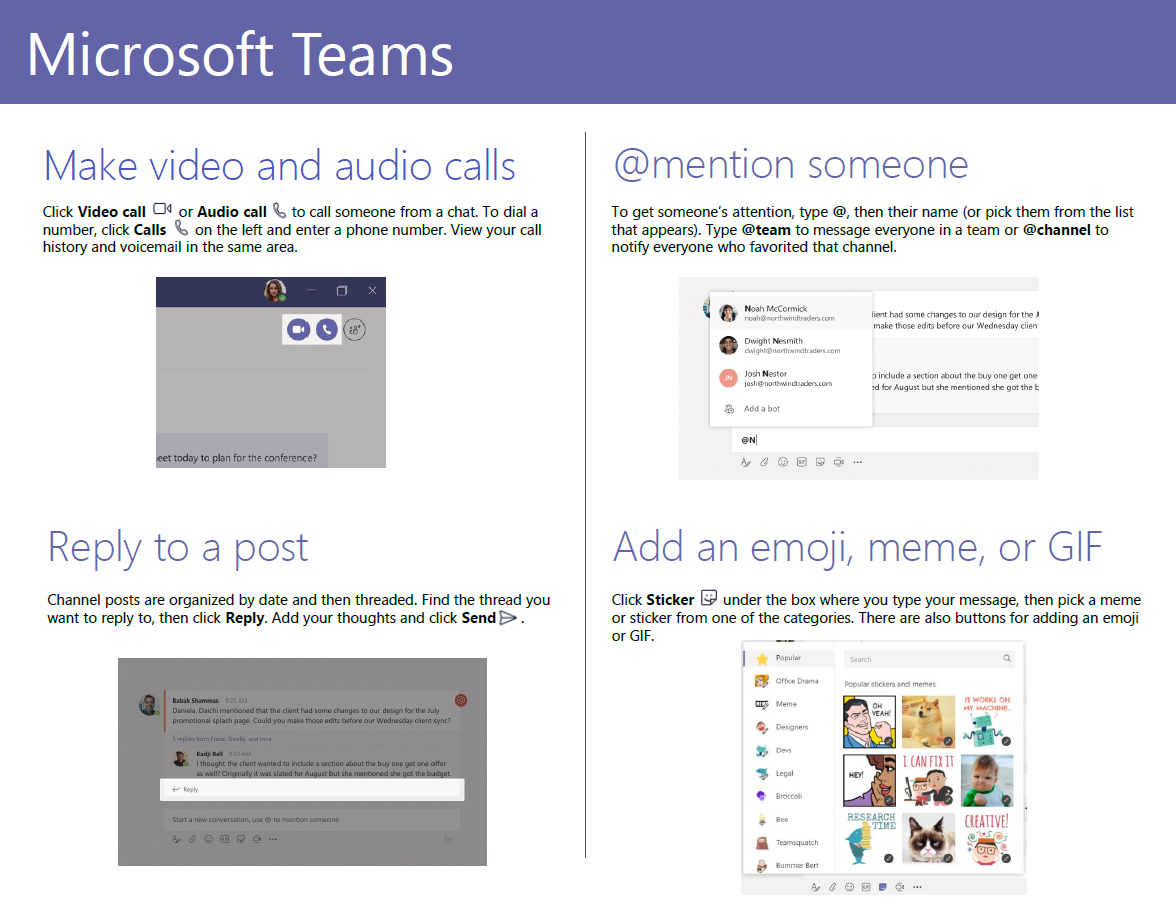
Microsoft Teams Make video and audio calls or Audio call to call someone from a chat. To dial a Click Video call Cla number, click Calls on the left and enter a phone number. View your call history and voicemail in the same area. Reply to a post Channel posts are organized by date and then threaded. Find the thread you want to reply to, then click Reply. Add your thoughts and click SendE> . @mention someone To get someone's attention, type @, then their name (or pick them from the list that appears). Type @team to message everyone in a team or @channel to notify everyone who favorited that channel. o Add an emoji, make edits iraude a or GIF Click Sticker " under the box where you type your message, then pick a meme or sticker from one of the categories. There are also buttons for adding an emoji or GIF.


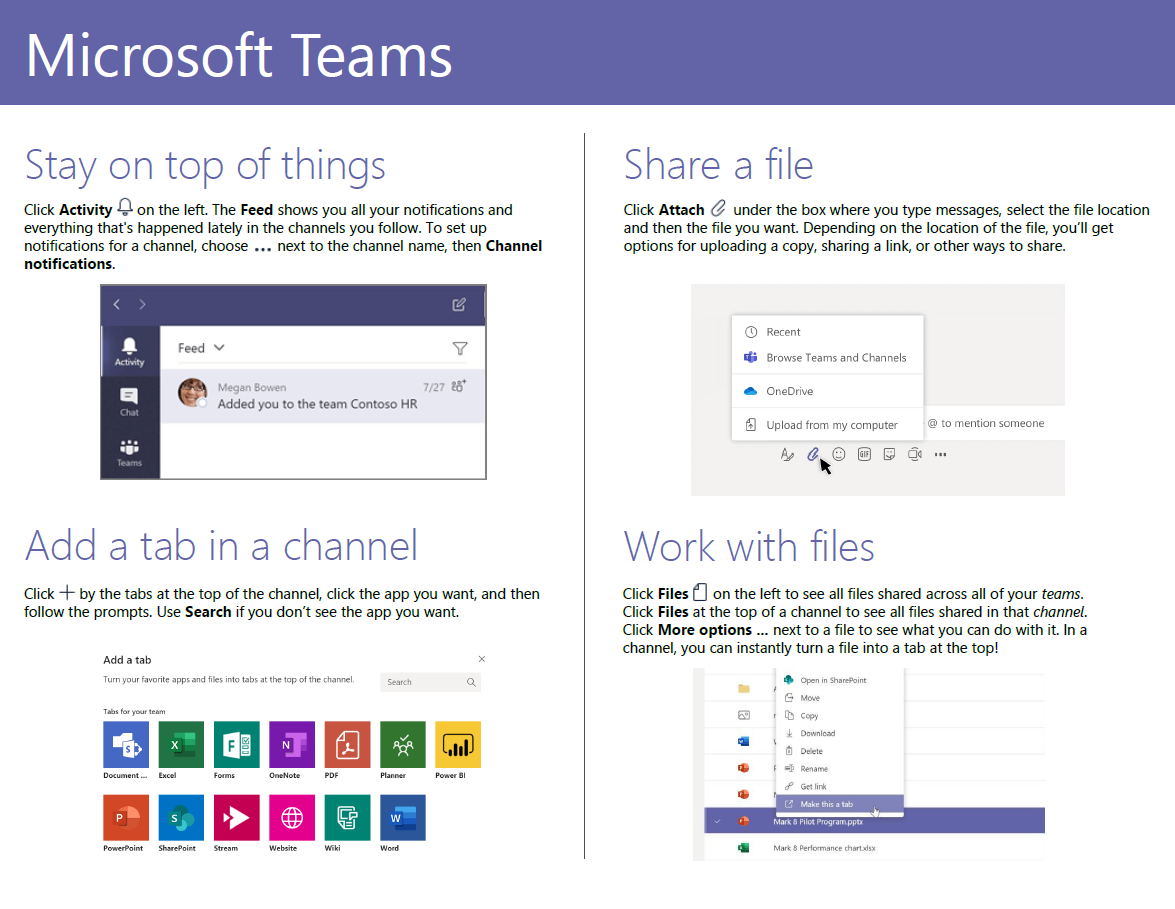
Microsoft Teams Stay on top of things Click Activity on the left. The Feed shows you all your notifications and everything that's happened lately in the channels you follow. To set up notifications for a channel, choose . . next to the channel name, then Channel notifications. Feed v Meg an Bowen 7/27 Added you to the team Cont0S0 HR Add a tab in a channel Click by the tabs at the top of the channel, click the app you want, and then follow the prompts. Use Search if you don't see the app you want. Add a tab Tum app, md into Share a file Click Attach under the box where you type messages, select the file location and then the file you want. Depending on the location of the file, you'll get options for uploading a copy, sharing a link, or other ways to share. Recent Browse Teams and Channels oneorive upload from my computer @ to mention someone Work with files Click Files on the left to see all files shared across all of your teams. Click Files at the top of a channel to see all files shared in that channel. Click More options next to a file to see whatyou can do with it. In a channel, you can instantly turn a file into a tab at the top! in


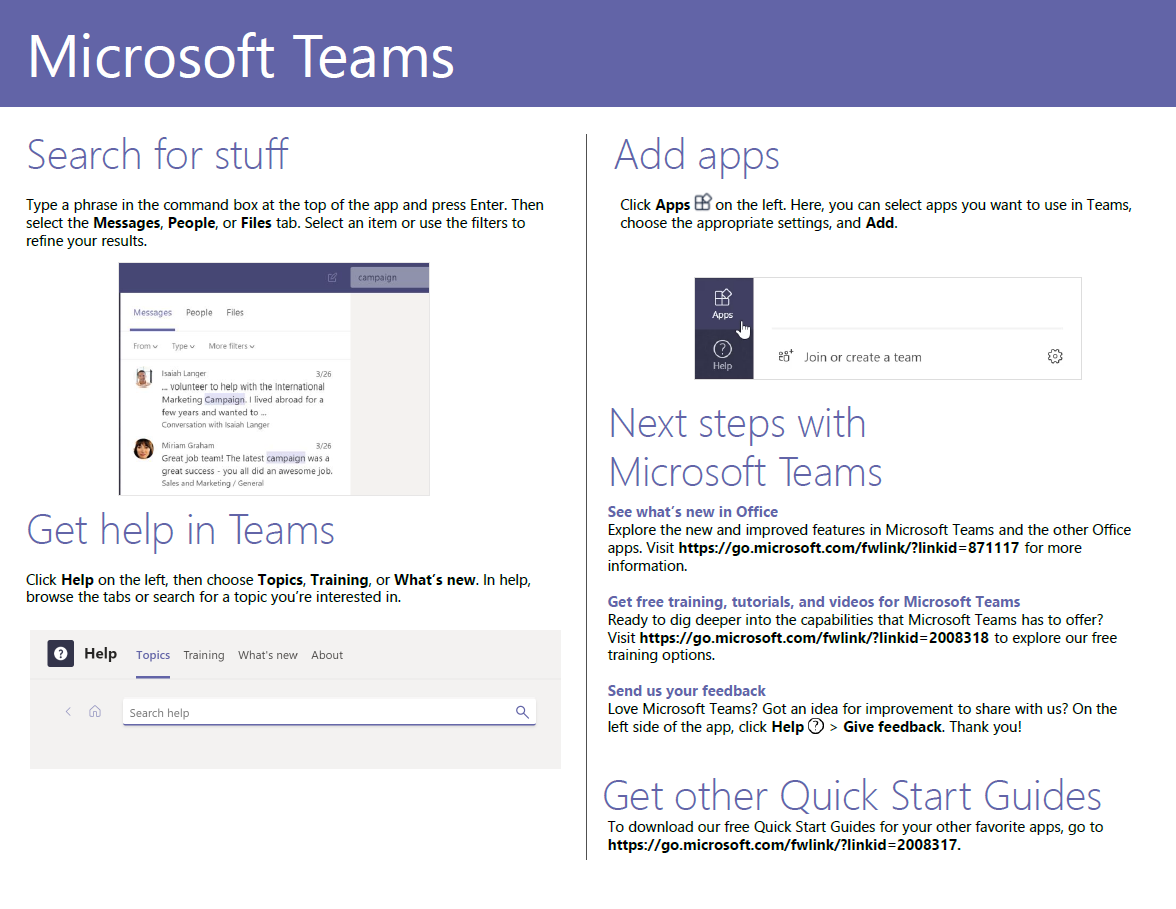
Microsoft Teams Search for stuff Type a phrase in the command box at the top of the app and press Enter. Then select the Messages, People, or Files tab. Select an item or use the filters to refine your results. Files _ to help wth International co with Miriam Great job team! The Latest campaign was a grat all did Get help in Teams Click Help on the left, then choose Topics, Training, or What's new. In help, browse the tabs or search for a topic you're interested in. Help Topics Training What's new About Sea rch help Add apps Click Apps on the left. Here, you can select apps you want to use in Teams, choose the appropriate settings, and Add. e Join or create a team Next steps with Microsoft Teams See what's new in Office Explore the new and improved features in Microsoft Teams and the other Office apps. Visit https://go.microsoft.com/fwlink/?linkid=871117 for more information. Get free training, tutorials, and videos for Microsoft Teams Ready to dig deeper into the capabilities that Microsoft Teams has to offer? Visit https://go.microsoft.com/fwlink/?linkid=2008318 to explore our free training options. Send us your feedback Love Microsoft Teams? Got an idea for improvement to share with us? On the left side of the app, click Help O > Give feedback. Thank you! Get other Quick Start Guides To download our free Quick Start Guides for your other favorite apps, go to https://go.microsoft.com/fwlink/?linkid=2008317.


Was this article helpful?

That’s Great!

Thank you for your feedback

Sorry! We couldn't be helpful

Thank you for your feedback

Let us know how can we improve this article!

Select at least one of the reasons
CAPTCHA verification is required.

Feedback sent

We appreciate your effort and will try to fix the article