Managing the conference
- Log into the 3CX Web App – https://10.200.20.52/webclient
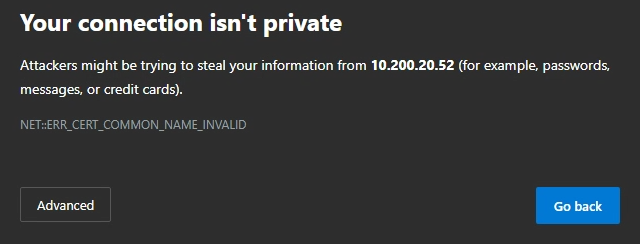
If this message comes up it is ok to click Advanced and then Continue to 10.200.20.52
Extension Number = 8000
Password = ias8000
- Go to Meet

- Next select the icon for Scheduled Conferences
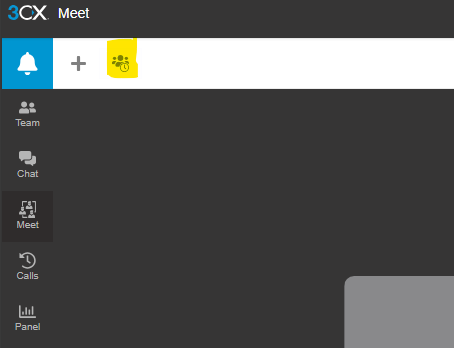
- In here you will see the list of Conference Calls, select the one you are wanting to see.

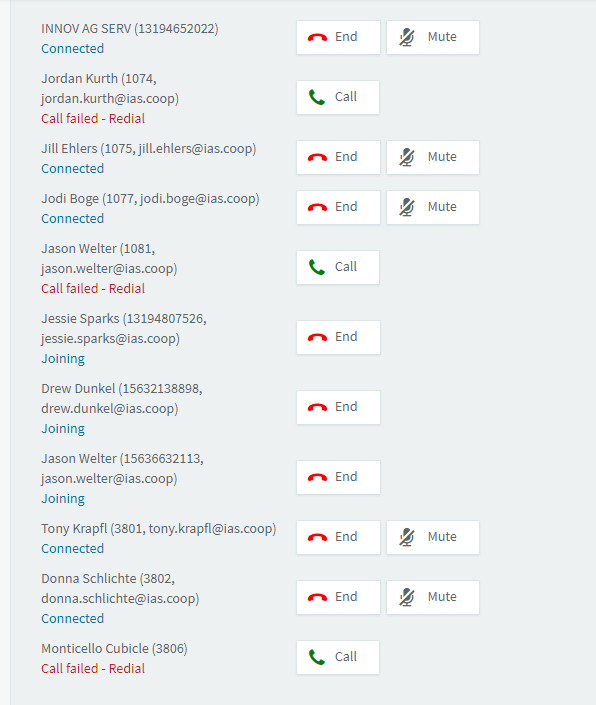
- From this menu you will see all callers and any additional ones (forwarded after invite) as they arrive.
- From here you can hang up, mute, or call the participant
- Once done you can hang up your call
Was this article helpful?
That’s Great!
Thank you for your feedback
Sorry! We couldn't be helpful
Thank you for your feedback
Feedback sent
We appreciate your effort and will try to fix the article