If you are experiencing problems with the print Jobs window in Control, please follow these instructions to correct the problem.
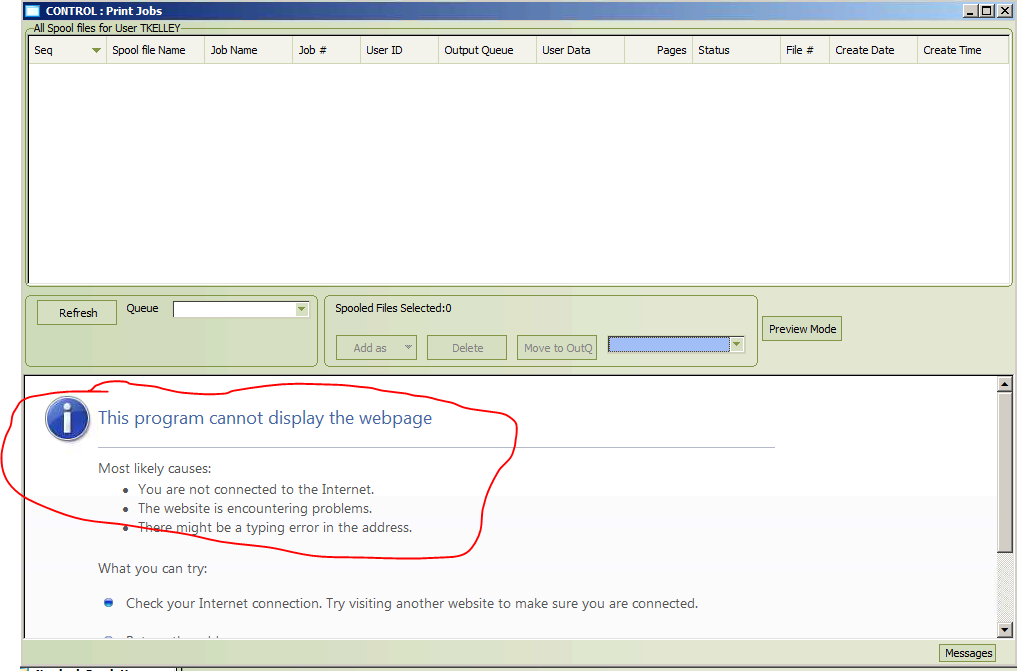
How do you know if your Control application is having this problem? Open the Print Jobs window in Control and if it looks like the window below, then you have this problem and need to fix it.
Close all applications (i.e. Outlook, Control, Excel).
Go to the following file and run it (double click on it). It will seem like nothing happened but it just runs very, very fast. \\iasfile\shared\0001 Control Print Jobs Patch\FixSpoolFiles.vbs
If you are using a PC or laptop, do a “Disconnect and Log Off” from VMware. If you use a thin client, do a “Start”, “Log Off”. Wait for about 60 seconds to give your VMware session a chance to restart.
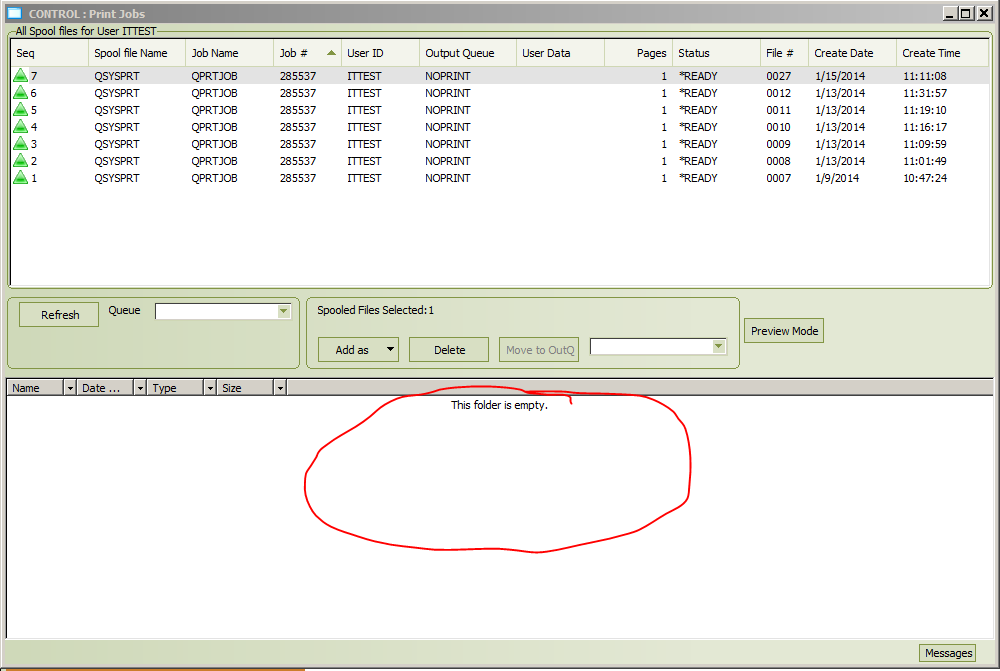
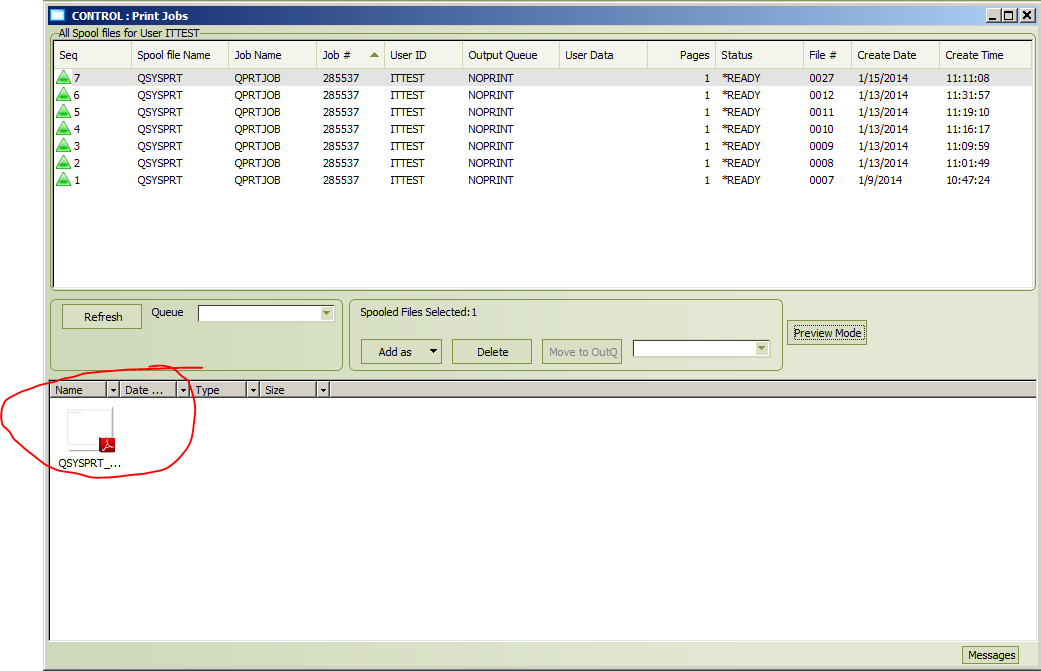

The “Save Mode” button is used when you want to keep a permanent copy of a spool file listed in the top half of the window. To create this permanent copy, click on the “Preview Mode” button so that it says “Save Mode” and then double click on a spool file in the top half of the window. You will then see a PDF copy of the spool file in the bottom half of the window. Please only use this “Save Mode” option when you really need to.
I.T. has received many calls from people who are double clicking on a spool file in the upper half of the window and it does not open as a PDF. This is usually because the button is set to “Save Mode”. Please be sure the button is set to “Preview Mode” as in the window above.
Was this article helpful?
That’s Great!
Thank you for your feedback
Sorry! We couldn't be helpful
Thank you for your feedback
Feedback sent
We appreciate your effort and will try to fix the article